Console
How to Run Console Tools
5 min read
Updated Sep 4, 2026
Console Tools provide advanced operations for managing messages, syncing settings, and running bulk administrative tasks.
Console Tools in eCourtDate provide advanced operations for managing messages, syncing settings, and performing bulk administrative tasks across your agencies.
Overview
- What: Run specialized tools from the eCourtDate Console to copy settings between agencies, manage scheduled messages, sync messages for events and payments, and perform other advanced operations
- Why: Console Tools automate complex tasks that would otherwise require manual intervention, saving time and ensuring consistency across agencies
- Who: Console administrators with access to the eCourtDate Console
- Expected outcomes: Immediate execution of the selected tool with a confirmation message upon completion
Prerequisites
- You must have Console access for eCourtDate at console.ecourtdate.com
- You must be logged in with valid eCourtDate credentials
- You should understand the impact of each tool before running it, as most actions are irreversible
How-To Steps
Step 1: Log In to the Console
- Navigate to the eCourtDate Console.
- Click Login to eCourtDate Console and enter your credentials.
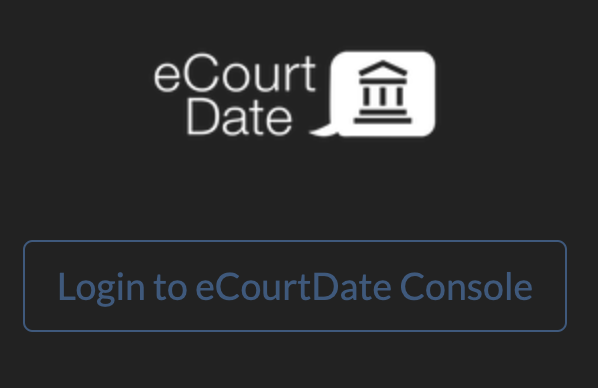
Step 2: Navigate to the Tools Page
- Click Tools from the top navigation bar.

Step 3: Select and Run a Console Tool
- Review the list of available tools and select the one you need.

- Configure any required parameters for the selected tool (such as selecting the source and target agencies for Copy Settings).
- Click the action button to execute the tool.
The following Console Tools are available:
| Tool |
Description |
| Copy Settings |
Transfers settings from one agency to another |
| Delay Messages |
Postpones messages based on a specified time |
| Sync Messages for Future Events |
Updates all upcoming events with the latest message settings |
| Sync Messages for Past Events |
Updates all past events with the latest message settings |
| Sync Messages for Past Due Payments |
Updates payments with past due dates using the latest settings |
| Sync Messages for Future Due Payments |
Updates payments with upcoming due dates using the latest settings |
| Resend Messages |
Sends messages again that were previously sent |
| Delete Scheduled Messages |
Removes all scheduled messages |
| Delete Simulated Messages |
Erases all simulated messages |
What to Expect
Once you execute a Console Tool, the selected action runs immediately. The Console displays a confirmation message indicating the tool has completed successfully. Depending on the tool, changes may take effect within seconds or may process in the background for larger data sets.
Best Practices
- Double-check the selected tool and its parameters before executing, as most actions cannot be undone.
- Use Copy Settings when onboarding a new agency to replicate a proven configuration quickly.
- Run Sync Messages tools after making changes to your messaging settings to ensure all events and payments reflect the latest configuration.
- Avoid running Delete Scheduled Messages or Delete Simulated Messages unless you are certain you want to remove all messages of that type.
- Test tools on a smaller scope (such as a single agency) before applying changes broadly.
Frequently Asked Questions
Q: Can I undo actions performed using Console Tools?
A: No. Actions executed using Console Tools are irreversible. Always verify the tool, target agency, and parameters before running a command.
Q: What is the difference between "Sync Messages for Future Events" and "Sync Messages for Past Events"?
A: "Sync Messages for Future Events" applies the latest message settings to all upcoming events. "Sync Messages for Past Events" does the same for events that have already occurred. Use the future events tool when you update your messaging configuration and want upcoming events to reflect those changes.
Q: Will "Delete Scheduled Messages" also delete messages that have already been sent?
A: No. This tool only removes messages that are currently scheduled but have not yet been sent. Messages that were already delivered are not affected.
Q: How does "Copy Settings" work?
A: You select a source agency and a target agency. The tool copies the configuration settings from the source to the target. This is useful when setting up a new agency with the same configuration as an existing one.
Q: Do I need to be a Super Admin to use Console Tools?
A: You need Console access, which is separate from agency-level Super Admin permissions. Contact your eCourtDate account manager if you need Console access.
Troubleshooting
Issue: Cannot log in to the eCourtDate Console.
Symptoms: You see an access denied error or the login page does not accept your credentials.
Solution:
- Verify you are using the correct eCourtDate credentials.
- Confirm your account has been granted Console access. Console access is separate from standard agency access.
- If you need Console access, contact your eCourtDate account manager.
Issue: A Console Tool does not appear to have any effect.
Symptoms: After running a tool, the expected changes are not visible.
Solution:
- Verify you selected the correct agency when running the tool.
- Refresh the page or check the target area (messages, settings) to confirm changes were applied.
- For large data sets, the tool may still be processing in the background. Wait a few minutes and check again.
Issue: Accidentally ran the wrong Console Tool.
Symptoms: Unintended changes were made (such as deleted messages or overwritten settings).
Solution:
- Console Tool actions are irreversible. Assess the impact of the action that was run.
- If settings were overwritten, manually reconfigure the affected settings.
- If messages were deleted, you may need to recreate scheduled messages or re-sync using the appropriate sync tool.
- Contact eCourtDate support if you need assistance recovering from an unintended action.
Related Articles
Console Tools in eCourtDate provide advanced operations for managing messages, syncing settings, and performing bulk administrative tasks across your agencies.
### Overview
- **What:** Run specialized tools from the eCourtDate Console to copy settings between agencies, manage scheduled messages, sync messages for events and payments, and perform other advanced operations
- **Why:** Console Tools automate complex tasks that would otherwise require manual intervention, saving time and ensuring consistency across agencies
- **Who:** Console administrators with access to the [eCourtDate Console](https://console.ecourtdate.com)
- **Expected outcomes:** Immediate execution of the selected tool with a confirmation message upon completion
### Prerequisites
- You must have Console access for eCourtDate at [console.ecourtdate.com](https://console.ecourtdate.com)
- You must be logged in with valid eCourtDate credentials
- You should understand the impact of each tool before running it, as most actions are irreversible
### How-To Steps
#### Step 1: Log In to the Console
1. Navigate to the [eCourtDate Console](https://console.ecourtdate.com).
2. Click **Login to eCourtDate Console** and enter your credentials.

#### Step 2: Navigate to the Tools Page
1. Click **Tools** from the top navigation bar.

#### Step 3: Select and Run a Console Tool
1. Review the list of available tools and select the one you need.

2. Configure any required parameters for the selected tool (such as selecting the source and target agencies for **Copy Settings**).
3. Click the action button to execute the tool.
The following Console Tools are available:
| Tool | Description |
|------|-------------|
| **Copy Settings** | Transfers settings from one agency to another |
| **Delay Messages** | Postpones messages based on a specified time |
| **Sync Messages for Future Events** | Updates all upcoming events with the latest message settings |
| **Sync Messages for Past Events** | Updates all past events with the latest message settings |
| **Sync Messages for Past Due Payments** | Updates payments with past due dates using the latest settings |
| **Sync Messages for Future Due Payments** | Updates payments with upcoming due dates using the latest settings |
| **Resend Messages** | Sends messages again that were previously sent |
| **Delete Scheduled Messages** | Removes all scheduled messages |
| **Delete Simulated Messages** | Erases all simulated messages |
### What to Expect
Once you execute a Console Tool, the selected action runs immediately. The Console displays a confirmation message indicating the tool has completed successfully. Depending on the tool, changes may take effect within seconds or may process in the background for larger data sets.
### Best Practices
- Double-check the selected tool and its parameters before executing, as most actions cannot be undone.
- Use **Copy Settings** when onboarding a new agency to replicate a proven configuration quickly.
- Run **Sync Messages** tools after making changes to your messaging settings to ensure all events and payments reflect the latest configuration.
- Avoid running **Delete Scheduled Messages** or **Delete Simulated Messages** unless you are certain you want to remove all messages of that type.
- Test tools on a smaller scope (such as a single agency) before applying changes broadly.
### Frequently Asked Questions
**Q: Can I undo actions performed using Console Tools?**
A: No. Actions executed using Console Tools are irreversible. Always verify the tool, target agency, and parameters before running a command.
**Q: What is the difference between "Sync Messages for Future Events" and "Sync Messages for Past Events"?**
A: "Sync Messages for Future Events" applies the latest message settings to all upcoming events. "Sync Messages for Past Events" does the same for events that have already occurred. Use the future events tool when you update your messaging configuration and want upcoming events to reflect those changes.
**Q: Will "Delete Scheduled Messages" also delete messages that have already been sent?**
A: No. This tool only removes messages that are currently scheduled but have not yet been sent. Messages that were already delivered are not affected.
**Q: How does "Copy Settings" work?**
A: You select a source agency and a target agency. The tool copies the configuration settings from the source to the target. This is useful when setting up a new agency with the same configuration as an existing one.
**Q: Do I need to be a Super Admin to use Console Tools?**
A: You need Console access, which is separate from agency-level Super Admin permissions. Contact your eCourtDate account manager if you need Console access.
### Troubleshooting
**Issue:** Cannot log in to the eCourtDate Console.
**Symptoms:** You see an access denied error or the login page does not accept your credentials.
**Solution:**
1. Verify you are using the correct eCourtDate credentials.
2. Confirm your account has been granted Console access. Console access is separate from standard agency access.
3. If you need Console access, contact your eCourtDate account manager.
**Issue:** A Console Tool does not appear to have any effect.
**Symptoms:** After running a tool, the expected changes are not visible.
**Solution:**
1. Verify you selected the correct agency when running the tool.
2. Refresh the page or check the target area (messages, settings) to confirm changes were applied.
3. For large data sets, the tool may still be processing in the background. Wait a few minutes and check again.
**Issue:** Accidentally ran the wrong Console Tool.
**Symptoms:** Unintended changes were made (such as deleted messages or overwritten settings).
**Solution:**
1. Console Tool actions are irreversible. Assess the impact of the action that was run.
2. If settings were overwritten, manually reconfigure the affected settings.
3. If messages were deleted, you may need to recreate scheduled messages or re-sync using the appropriate sync tool.
4. Contact eCourtDate support if you need assistance recovering from an unintended action.
### Related Articles
- [How to Check the Audit Logs](/how-to-check-the-audit-logs)
- [How to Create a New Agency](/how-to-create-a-new-agency)
- [How to Set Up a New Agency](/how-to-set-up-a-new-agency)
- [How to Manage Users](/how-to-manage-users)
- [How to Manage Billing](/how-to-manage-billing)