Events and Calendars
How to Restore Events
5 min read
Updated Sep 4, 2026
Reactivate previously trashed or archived events, making them visible again and resuming client notifications.
Restoring events in eCourtDate lets you reactivate previously trashed or archived events, making them visible again and resuming client notifications.
Overview
When an event is trashed or archived, it is removed from your active event list and its scheduled messages are deleted. Restoring the event reverses these changes, bringing the record back into your active workflow.
- What it does: Reactivates trashed or archived events so they appear in search results and resume flow-based notifications.
- Why it matters: Ensures you can recover events that were trashed or archived by mistake, or reactivate events that become relevant again.
- Who uses it: Agency administrators and staff who manage event records.
- Expected outcome: The restored event is fully active, visible in search, and any assigned flow messages are resynced.
Prerequisites
Before restoring an event, make sure you have:
- An active eCourtDate agency on staging or production
- Permission to update events (super admin access or the Update Events permission)
- At least one event that is currently in a trashed or archived state
How-To Steps
Restore an Event from Trash or Archive
- Click Events in the top navigation bar.
- In the Search Events section, select the Archived checkbox (for archived events) or the Trashed checkbox (for trashed events).
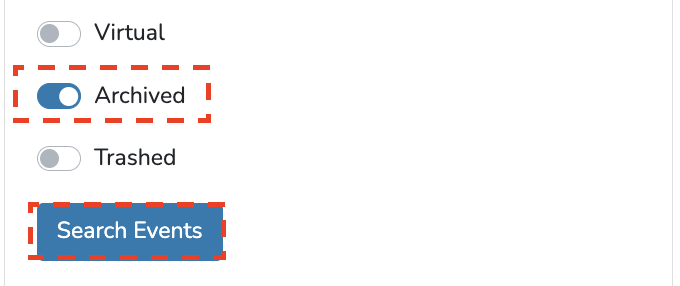
- Click the Search button to locate your event.
- Click the event to open it, then click the Edit button.

- Click Tools > Restore.

- Verify that the archived or trashed alert is removed from the event page.
What to Expect
After restoring an event:
- The trashed or archived alert is removed from the event.
- The event becomes visible in both quick search and advanced search.
- If the event has an assigned flow, flow messages are automatically resynced and scheduled based on the current event details.
- Auto messages are not retriggered for the restored event.
- Clients attached to the event will begin receiving flow-based notifications again.
Best Practices
- Restore trashed events promptly, as they are permanently deleted after 30 days.
- After restoring, review the event details (date, time, status) to confirm they are still accurate before flow messages are sent to clients.
- Use the Archived checkbox rather than the Trashed checkbox if you are unsure which state the event is in, then check both if needed.
- Consider archiving events instead of trashing them when you might need the record again, since archived events are retained indefinitely.
- After restoring an event with an assigned flow, open the event and verify that the correct messages have been resynced.
Frequently Asked Questions
Q: Can I search for specific events before restoring them?
A: Yes. Use the Search Events form with keywords, date ranges, or other filters while the Archived or Trashed checkbox is selected to find the exact event you need.
Q: What happens to the event's messages when I restore it?
A: If the event has an assigned flow, messages are automatically resynced based on the event's current details. Auto messages, however, are not retriggered.
Q: Can I restore an event that was permanently deleted?
A: No. Trashed events are permanently deleted after 30 days. Once deleted, they cannot be recovered. Archived events, on the other hand, are retained indefinitely and can always be restored.
Q: Will restoring an event notify the assigned clients immediately?
A: Restoring the event resyncs flow messages, which means clients may receive messages based on the flow's triggers and the event's dates. If the event date is in the past, no future-dated messages will be generated.
Q: Do I need to re-attach clients after restoring an event?
A: No. Client attachments are preserved when an event is trashed or archived. Restoring the event makes those attachments active again.
Troubleshooting
Issue: Cannot find the trashed or archived event in search results.
Symptoms: You selected the Trashed or Archived checkbox but the event does not appear.
Solution:
- Verify you selected the correct checkbox (Trashed vs. Archived) based on how the event was removed.
- Try selecting both checkboxes to broaden your search.
- Use additional search filters (event date, case number, client name) to narrow down results.
- If the event was trashed more than 30 days ago, it may have been permanently deleted.
Issue: Flow messages are not resyncing after restoring the event.
Symptoms: The event is restored but no messages appear on the event detail page.
Solution:
- Verify the event has a flow assigned by checking the Flow field on the event edit page.
- Click Tools > Sync Messages to manually trigger a resync.
- Confirm the flow has active message triggers that match the event's current status and dates.
- Ensure at least one client is attached to the event.
Important: If you continue to experience issues after following these troubleshooting steps, sign in to eCourtDate and create a ticket by clicking the ticket button in the bottom right corner of the screen.
Related Articles
Restoring events in eCourtDate lets you reactivate previously trashed or archived events, making them visible again and resuming client notifications.
### Overview
When an event is trashed or archived, it is removed from your active event list and its scheduled messages are deleted. Restoring the event reverses these changes, bringing the record back into your active workflow.
- **What it does:** Reactivates trashed or archived events so they appear in search results and resume flow-based notifications.
- **Why it matters:** Ensures you can recover events that were trashed or archived by mistake, or reactivate events that become relevant again.
- **Who uses it:** Agency administrators and staff who manage event records.
- **Expected outcome:** The restored event is fully active, visible in search, and any assigned flow messages are resynced.
### Prerequisites
Before restoring an event, make sure you have:
- An active eCourtDate agency on [staging](https://staging.ecourtdate.com) or [production](https://app.ecourtdate.com)
- Permission to update events (super admin access or the **Update Events** permission)
- At least one event that is currently in a trashed or archived state
### How-To Steps
#### Restore an Event from Trash or Archive
1. Click **Events** in the top navigation bar.
2. In the **Search Events** section, select the **Archived** checkbox (for archived events) or the **Trashed** checkbox (for trashed events).

3. Click the **Search** button to locate your event.
4. Click the event to open it, then click the **Edit** button.

5. Click **Tools** > **Restore**.

6. Verify that the archived or trashed alert is removed from the event page.
### What to Expect
After restoring an event:
- The trashed or archived alert is removed from the event.
- The event becomes visible in both quick search and advanced search.
- If the event has an assigned flow, flow messages are automatically resynced and scheduled based on the current event details.
- Auto messages are not retriggered for the restored event.
- Clients attached to the event will begin receiving flow-based notifications again.
### Best Practices
- Restore trashed events promptly, as they are permanently deleted after 30 days.
- After restoring, review the event details (date, time, status) to confirm they are still accurate before flow messages are sent to clients.
- Use the **Archived** checkbox rather than the **Trashed** checkbox if you are unsure which state the event is in, then check both if needed.
- Consider archiving events instead of trashing them when you might need the record again, since archived events are retained indefinitely.
- After restoring an event with an assigned flow, open the event and verify that the correct messages have been resynced.
### Frequently Asked Questions
**Q: Can I search for specific events before restoring them?**
A: Yes. Use the **Search Events** form with keywords, date ranges, or other filters while the **Archived** or **Trashed** checkbox is selected to find the exact event you need.
**Q: What happens to the event's messages when I restore it?**
A: If the event has an assigned flow, messages are automatically resynced based on the event's current details. Auto messages, however, are not retriggered.
**Q: Can I restore an event that was permanently deleted?**
A: No. Trashed events are permanently deleted after 30 days. Once deleted, they cannot be recovered. Archived events, on the other hand, are retained indefinitely and can always be restored.
**Q: Will restoring an event notify the assigned clients immediately?**
A: Restoring the event resyncs flow messages, which means clients may receive messages based on the flow's triggers and the event's dates. If the event date is in the past, no future-dated messages will be generated.
**Q: Do I need to re-attach clients after restoring an event?**
A: No. Client attachments are preserved when an event is trashed or archived. Restoring the event makes those attachments active again.
### Troubleshooting
**Issue:** Cannot find the trashed or archived event in search results.
**Symptoms:** You selected the **Trashed** or **Archived** checkbox but the event does not appear.
**Solution:**
1. Verify you selected the correct checkbox (**Trashed** vs. **Archived**) based on how the event was removed.
2. Try selecting both checkboxes to broaden your search.
3. Use additional search filters (event date, case number, client name) to narrow down results.
4. If the event was trashed more than 30 days ago, it may have been permanently deleted.
**Issue:** Flow messages are not resyncing after restoring the event.
**Symptoms:** The event is restored but no messages appear on the event detail page.
**Solution:**
1. Verify the event has a flow assigned by checking the **Flow** field on the event edit page.
2. Click **Tools** > **Sync Messages** to manually trigger a resync.
3. Confirm the flow has active message triggers that match the event's current status and dates.
4. Ensure at least one client is attached to the event.
> **Important:** If you continue to experience issues after following these troubleshooting steps, sign in to eCourtDate and create a ticket by clicking the ticket button in the bottom right corner of the screen.
### Related Articles
- [How to Manage Events](/how-to-manage-events)
- [How to Create a Flow](/how-to-create-a-flow)
- [How to Create a Virtual Event](/how-to-create-a-virtual-event)
- [How to Create Events via Bulk Actions](/how-to-create-events-via-bulk-actions)